Ever find yourself poised to write something important, staring at your screen summoning the words to come, and just then your eyes glazing over?

Your fingertips hover over the keys but you don’t know where to start and that blank page is teasing you. The absence of words is deafening. 

Some people are just naturally more comfortable and confident talking rather than writing. 

For others, like me, the words come quickly enough but sometimes the ideas arrive in my head too fast for my fingers to keep up. 

Whatever the case may be for you, I have a little hack to allow you to get your words on the page without having to type AT ALL. 

(Seriously, say adios to eye strain!)

And it alllll comes down to this little symbol:
Google voice typing button for text to speech functionality

Google Docs has a nifty voice typing feature that transcribes audio to text automatically.

That means you’ll never have to type out your first draft again; just speak it instead!

I actually came across this hack in my search to find a free (and hassle-free) way to transcribe my one hour (or more!) Deep Dive call replays.

I’d been searching for aaaaages. 

An hour-long video can take me 3 hours to replay, transcribe, and analyse to pull out info I need to create a client’s brand roots, like the Brand Storybook and Messaging Guide (typically the first and most important part of work I do for all my clients).

Zoom offers transcriptions on its paid plan while you can order transcripts through online services. But when you’re trying to limit overheads, it’s not an ideal solution (one day though! 🤞).

Those same online transcription services often offer free trials but they’re limited; once you’ve had a few goes, you usually need to upgrade to a paid version or hunt around for yet another free trial elsewhere. 

So naturally, the little hack I discovered has TRANSFORMED this aspect of my business — but might transform yours in quite another way if you’re “really just not a writer”.*

Google Docs, a copywriting tool I already use daily, has a speech-to-text function that will capture your voice as you dictate, jotting down your notes without you even having to touch your keyboard.

When to use the Google voice typing feature

If you struggle with the act of writing, this hack will get you over the first hurdles!

You can lean back in your chair, kick up your feet, and begin to dictate your thoughts to the speech-to-text function. 

The beauty of this is that you can let your mind run without worrying about grammar or spelling. You can get the essentials down on “paper” without over-analysing the words you use or the structure. 

And the extra wonderful thing? 

It’s that you’ll relax into your voice, allowing Google Docs to capture your distinct “isms” and may come to define your brand voice.

(In my client Word Bank tab in their Messaging Guide, I legit include a specific column for “isms”. Julie-isms. Janet-isms. Robert-isms. This column captures the wonderful YOUness that brings extra punch to your brand personality.)

Access my 90 Day Content Compass or a website copywriting package to uncover your distinctive brand voice and create mind-reading messaging that makes your brand stand out.

How to use Google Docs voice typing

It’s pretty dang simple. Got your Google doc ready?

Step 1: Go to Tools (upper left menu) > Voice typing (or click CTRL [CMD] + Shift + S). 

Step 2:  Select the language and regional dialect you’ll be speaking in to better capture your accent.

Step 3: Hit the microphone button and start speaking. Google will do the rest!

See. Easy peasy.

Alternative speech-to-text options on your laptop

Using speech-to-text on Windows

OK, I get it. Some people aren’t a fan of Google Docs. Luckily for you, you can also open up a speech-to-text function on Windows by pressing the windows button and the H key but I haven’t found the dictation as accurate or as reliable as the Voice typing on Google Docs. 

If this does float your boat, Business Insider has written up a detailed guide on using speech-to-text on Windows.

Using speech-to-text on Mac

I’m no Apple user over here (ick!) but I’m informed that you can press the Function (Fn) key twice to start the speech-to-text mode. 

How-To Geek has got you sorted on using speech-to-text on Mac.

Using speech-to-text on Word

I’m all about Google Docs over here but there’s a Dictate function on Microsoft Word that lets you do much the same thing too. 

Business Insider saves the day again with their guide to using Dictate in Word.

Ready to have a stab at writing your OWN copy?!

*EVERYONE is a writer

No, seriously! Before you roll your eyes and tell me I’m dreaming, that YOU seriously cannot write, trust me.

I’ve been doing this a long time.

Pay attention to the way you speak to your partner, your friends, and you’ll discover you have certain ways of saying things that are colourful, fun, authentic, expert. 

You may not have the technical skills, but you have a beautifully distinctive voice. Flavourful turns of phrase that make you YOU and your business stand out. 

Have confidence in yourself and you might, just MAYBE, be able to produce some winning copy. 

All you need is a copywriter like moi to add a little guidance or some finishing technical touches — a clean up of the structure, a tad bit of SEO, some grammar and spelling adjustments. 

Learn more about how we can work collaboratively on your copy with my copywriting consulting services.
About 6 months into my freelance journey, I hit a snag. Suddenly, I had multiple clients, projects, and start and end dates. A pile of new enquiries demanded my attention.

I had a growing bank of proposals to send out, invoices to chase after, and jobs to complete as deadlines loomed. Amidst the celebration (since this was a clear sign my business was growing), I wondered how the heck I was meant to keep track of it all. 

I struggled to sleep, wondering as I drifted off whether I had overlooked a deadline, forgotten to send off an invoice, or overbooked myself.

If this sounds familiar, congratulations! It means your business is thriving! But YOU may be a little worse for wear.

In the years since that first point of overwhelm, I’ve created a project management system. It isn’t foolproof but it works. I’ve managed to stay atop the mountain so far.

And the best thing? Most of it is free!

How I manage client projects from start to finish.


Automation: Managing my enquiry process.

I peek at my inbox at the end of an exhausting day and discover the intimidating bold type of five new emails. 

Two of them are new enquiries. 

And while it makes me happy to see new people take a punt on me, I feel overwhelmed. 

Each new enquiry can take hours of management. The back and forth questions. The phone call (most dreaded by the introvert creative). The proposal. 

A new enquiry would throw me off my game. Swallow up an afternoon here, a morning there. Trigger anxiety and imposter syndrome. 

Until I made these changes…


  1. I invested in Zoe Taylor’s System Savvy course and ActiveCampaign to automate responses to website enquiries. New prospects receive an immediate email with a services list, more detailed info about the specific service they’ve shown interest in, and a link to book an Intro Chat.
  2. Calendly handles my schedule. Anybody who wants to chat can view my availability and book a call. I’ve reduced calls to just two afternoons a week so I still have plenty of undisrupted time to do what I do best: help write people’s website


The first time I interact with anyone who wants to work with me is when I open up my meeting room on Zoom

But the biggest change to my enquiry system has nothing to do with fancy tech. It’s simple manual scheduling. 

I made Friday the day to review all enquiries, write up any necessary proposals, and send off outstanding invoices. 

Removing these tasks from the client-work portion of my week (Tuesdays to Thursdays) helps me sustain focus and stay in the flow longer when I’m knee-deep in creative work. 

Google Calendar: Scheduling and tracking work tasks.

So how on earth do you KNOW when you can book new clients?

That problem confounded me when I started out and it took me a while to find a system. But the solution was so simple. 

Google Calendar.

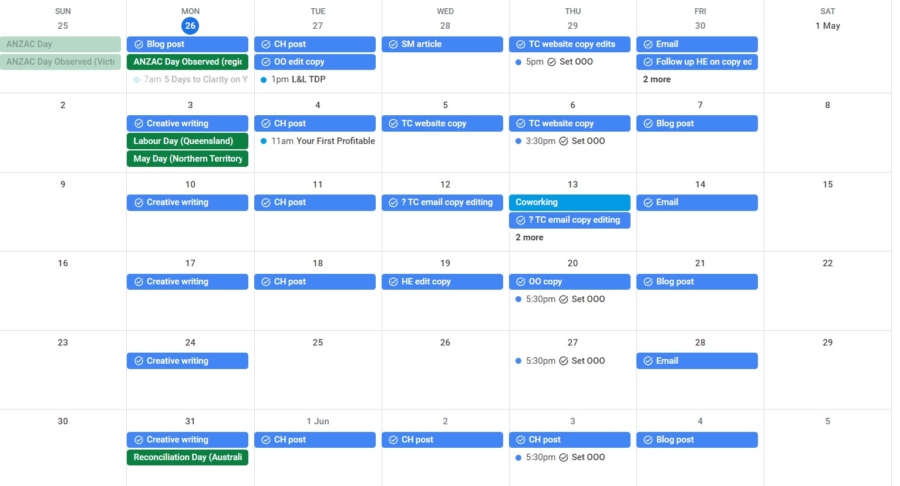
When I receive a new enquiry, I find the nearest availability in my calendar and add it as a task to the day with a question mark beside it. 


Google calendar setup for project management with tasks marked off for each day.


Once agreements are signed and deposits paid, I remove the question mark from the project and the work’s booked in. 

Gmail: Keeping track of client emails with labels.

My email inbox. Harbinger of overwhelm, anxiety, and imposter syndrome. I could happily do without it. 


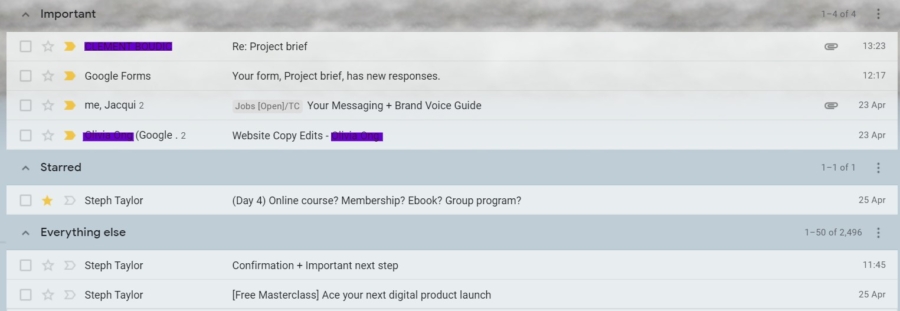
Email organisation with important emails, starred emails, and the rest.


But I’ve managed to create a system from the madness within by…

  • Marking any email I need to respond to or act on as important. 
  • Starring any email that contains an educational resource I want to read or watch. 
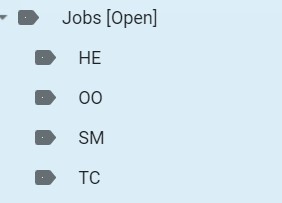
  • Labelling any email related to an active or future job with the client name so it can be housed in one folder for easy access. 


my Open Jobs email folder with subfolders for different active projects

How I stay on top of my ideas + execute them.


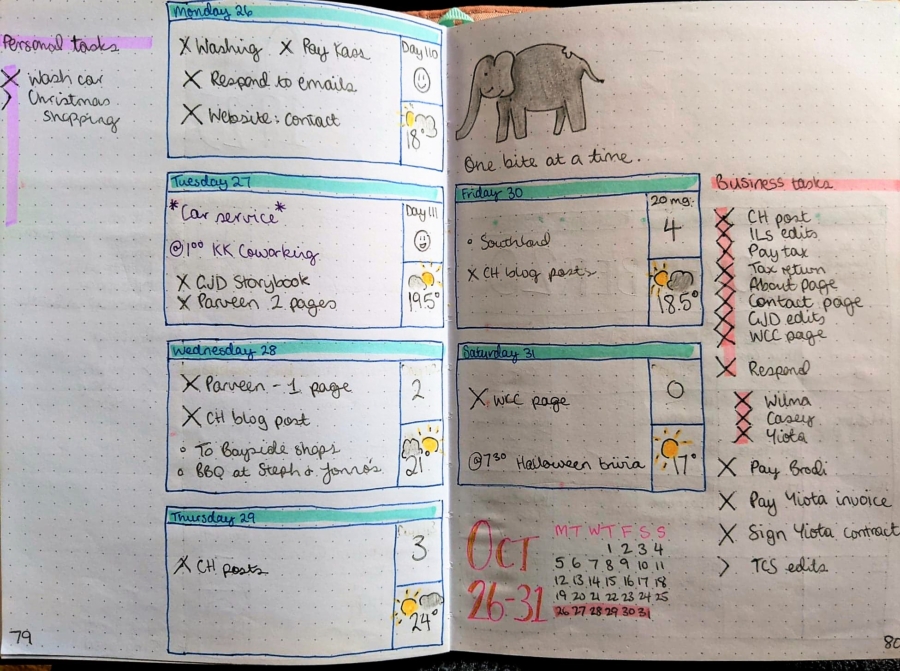
Bullet journal: Tracking my weekly to-do list.

The Bullet Journal is a pen-and-paper journalling system that helps you organise the ideas and thoughts swirling in your mind. It’s designed to reduce anxiety by alleviating your mind of the constant noise within. 

Once I mastered its signature techniques, the Bullet Journal Method has become indispensable to my daily thought management, especially when I’m unplugged.

I keep my BuJo on my bedside table to purge my mind of thoughts when I’m meant to be winding down. It helps me view my week at a glance and gives me a sense of control over every task, no matter how big or small. 


a weekly task page from my bullet journal


With the bullet journal system, you carry over incomplete items and scratch out anything not worth your time. It’s such a simple system that I use an adaptation of it even in my digital note-taking. 

Trello: Distilling major projects into bite-sized tasks and storing important data.

When I’m tackling a particularly overwhelming project—usually one of my own creative endeavours or a product for the Copy Shop—I create a Trello board to track the extensive to-do list. 

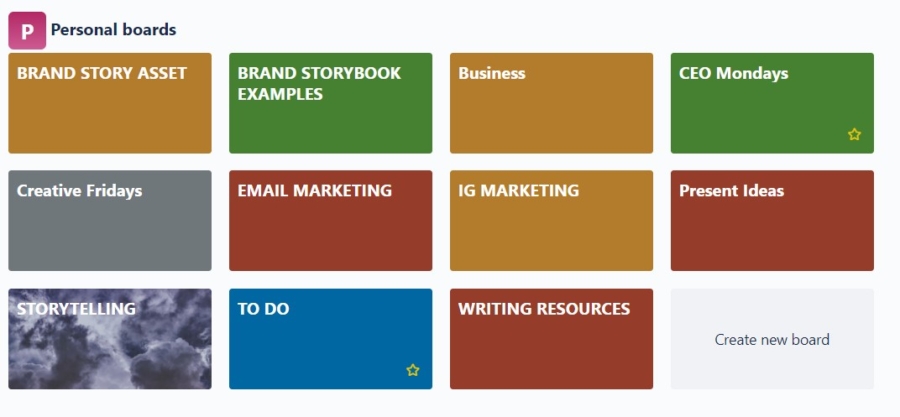
Trello boards act like folders. Inside a board, you can create lists and under each list, you can add tasks, resources, links… Whatever you want, really.


the home page for all my trello boards


When I’m using it for project management, I break the project out into bite-sized components (for example, Research, Create, Launch, etc). These parts become lists, under which I add every teensy task to tick off as I go. 

Trello’s a great resource coz you can add links and images that provide inspiration or education when you’ve got a big undertaking. And unlike Asana, it’s intuitive enough to be used without a steep learning curve.

But I mostly use Trello as a content bank where I store anything I’d need to access at a moment’s notice.

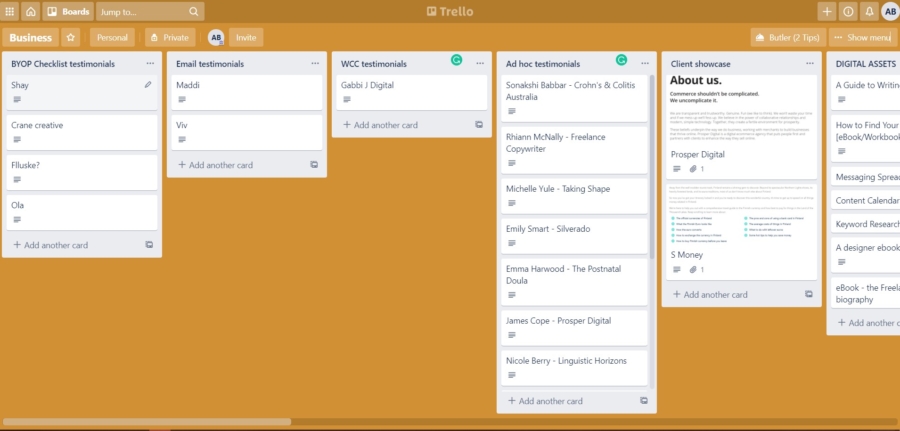
Take my business board. It covers:


  • Testimonials – organised into lists based on the service provided.
  • Client Showcase – to collect work I’ve done for clients (including screenshots in case the client changes the copy or closes the business).
  • Digital Assets – with details outlining each digital product I dream of creating.
  • Current Publications – with links to each publication I’ve guest-posted for. 


My trello board showcasing the various lists for testimonials, client showcases, etc.


My IG Marketing board breaks down post ideas into my different content pillars so I can locate a relevant post when I want to promote one particular pillar.

My Storytelling board is like an inspiration album where I collect brand story statements (Vision, Mission, Values, and so forth) from global companies. If I find myself stuck for inspiration when I’m working with my website copywriting  clients, I just bring this board up and peruse some of the best examples out there. 


Sticky Notes + Google Keep: Jotting down quick thoughts.

There are moments when a thought rushes at me but I’m deep in work, a conversation, or a stroll in nature. The thought might be a fleeting reminder or a sudden aha idea. It excites me but I don’t want to disrupt what I’m doing.

So I push it aside. Of course, when I wrack my brain minutes or hours later, it’s nowhere to be found. 

The best task management system is the one that’s close at hand. Enter the Sticky Notes app on my PC and Google Keep on my phone.

These note apps allow me to capture…


  • Reminders on my to-do list
  • Ideas for social media captions, blog posts, or emails
  • Ideas for new services or products
  • Important things to note for different client projects, such as a quick notation from the client brief or a particular turn of phrase I liked.
  • Collections of articles, lessons, quotes, and any other trinkets that might feature in the Inspo section of each fortnightly email I send to my community


To add structure to these notes, I label and colour code them or transfer relevant notes to Trello boards or my BuJo.


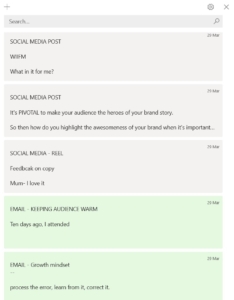
a list of my sticky notes colour coded according to their content

So what are your favourite task management tools?

There is no doubt my personal task management system will evolve as my business changes. And there’s no doubt I could tighten it further to reduce duplicate tools.

Which means… I’m open to suggestions! What are your favourite project management tools, techniques, and systems to stay on top of work? Share how you work in the comments below!